
FolderSizes – Advances in Disk Space Analysis Performance
The release of FolderSizes 8 represented a major milestone for our market-leading storage analysis and reporting product. Not only did we introduce a range of valuable new features, but we re-engineered the product’s file system analysis engine from scratch – with stunning results (note that performance varies based upon storage device speed, etc.).
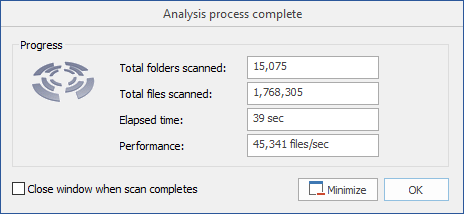
Since the public release of FolderSizes 8, we’ve received a number of inquiries from users asking how FolderSizes is able to perform as well as it does, especially when compared to similar products. Today I’d like to provide a high-level overview of where we’re at today and how we got here.
“SuperThreading” – A New Approach
The new FolderSizes 8 disk space analysis subsystem was built from the ground up to maximize parallelism and concurrency at all stages. It employs a user-customizable thread pool to minimize thread startup costs, and then intelligently allocates work using proprietary algorithms that maximize effectiveness and minimize the potential for thread contention.
This advanced threading system operates against a proprietary in-memory database model that iteratively constructs a complete working picture of the file system(s) being analyzed. The database dynamically adapts its internal storage model based upon the kind of workload assigned, ensuring that a minimal subset of information is stored in memory at any time, thereby vastly increasing scalability. Special memory compaction and data storage algorithms further ensure optimal memory usage.
All FolderSizes source code is developed using C/C++ and is compiled directly to 32 or 64 bit machine code instructions using the most powerful optimizing compilers available today. Optimizations occur not only during compilation, but also during runtime performance profiling, which optimizes the location of “hot” code paths during real-world program execution scenarios. These efforts result in amazingly fast program execution with minimal computational overhead and resource consumption. In other words, FolderSizes is not only blazingly fast – it’s also very efficient.
FolderSizes was the first product of its type to provide native 64-bit support – an accomplishment that many competing solutions have still not achieved.
FolderSizes also works very hard to optimize both local and network analysis workloads. It understands the semantic differences between these environments and adapts accordingly, ensuring the best possible experience regardless of whether you’re analyzing a local drive, a critical corporate NAS (network attached storage) device, or anything in between.
Collaboration, Experience and Pedigree
This work was made possible through years of cooperation with many of the largest organizations in the world. FolderSizes provides storage analysis capabilities to the likes of ExxonMobil, Chevron, NASA, Comerica Bank, Marathon Oil, and thousands of other companies with massive data storage requirements. Our close working relationship with these customers has helped us build the most advanced and thoroughly battle-tested disk space analysis product in the world.
Not only is FolderSizes stress tested against massive, real-world storage subsystems, but we also maintain an extensive internal testing environment that includes numerous “extreme” state conditions. This has helped us to develop FolderSizes into a tool that performs with a high level of accuracy in environments where other products simply crash and burn.
FolderSizes is developed and published by Key Metric Software, a Traverse City, MI company specializing in file system analysis and reporting products. Initial work on FolderSizes began early in 2001, with the first formal release published in 2003. That’s over fifteen years of iterative development on FolderSizes. In fact, you can review the product release notes at any time to see exactly how the tool has evolved over the years.
We’re very proud of how FolderSizes has advanced over the years, and even more excited about the future.
FolderSizes in Space!
FolderSizes was recently selected by the engineering crew of NASA Johnson Space Center to provide disk and file system analysis capabilities throughout the organization. It will be employed in training facilities, test labs, and will be installed directly on laptops for use on the International Space Station.
As the owner/founder of Key Metric Software and amateur astrophysics geek, I’m very excited by this news and eager to help NASA achieve their storage analysis goals. But on a personal note, I can’t shake the feeling that FolderSizes is living my dream by making it to space well before me. 
Windows Server 2016 Now Supported
With the release of FolderSizes v8.3.150, support for Windows Server 2016 has become official.
FolderSizes continues to provide cutting-edge support for new Microsoft operating system releases, this time even ahead of Windows Server 2016 general availability. Our continued goal is to ensure that you have the disk space analysis, reporting, and management capabilities you need when you need them – across all Windows platforms.

Creating (Printable) Folder and File Listings
One question that we receive from our customers on a fairly regular basis is “How can we produce a listing of all the folders (or files) in a specific directory?” Often the customer will also want to print and/or export said listing.
This is a perfect job for the FolderSizes Search tool. In fact, FolderSizes can product a “flat” (non-hierarchical) list of files and/or folders that includes a considerable amount of useful information – far more than what is exposed by other software utilities. For example, creating a list of folders will yield their size, allocated size (e.g. “size on disk), owner, attributes, path and name lengths, folder depth, and much more.
Not only does FolderSizes Search produce detailed results, but those results can be exported, printed, and even managed (copied, deleted, or archived) directly from within the tool. You can schedule production of said reports, as well as load and save them as needed. You can also search multiple local and/or network file systems in a single pass.
So let’s walk through a simple example of how to use FolderSizes Search in this capacity. Let’s say we want to list all the image files in a specific directory.
- Click the Search button in the main window ribbon bar
- On the Search Paths tab, click the New Path button and browse for the folder you wish to search
- Switch to the Search Rules tab and click the New Rule button, then select New File Rule
- Optionally give the rule a useful name (it will named something like “Rule #1” by default)
- In the Name tab of the file rule editor, click the Presets button and select Images
- Click OK to save the rule
At this point we have a single file rule configured to match the file extensions of a wide range of image file types and we simply need to run the Search by clicking the Start button. Results will begin to appear as soon as they’re available.
Of course, this is just the beginning in terms of what’s possible. You can also create folder rules, with criteria designed to match specific folders (rather than files) – or you can use a combination of the two. File and folder rules can match a wide range of criteria such as name (as we saw in our example above), attributes, size, name or path length, age, owner, folder depth, and more.
In summary, the Search tool is very versatile and can produce folder/file listings that include many of the critical report attributes (such as size and allocates size) that you expect from FolderSizes. If you have any questions about how to achieve a specific goal, please don’t hesitate to reach out to us – we’re happy to help.
Find Long Paths with FolderSizes
FolderSizes provides robust support for long NTFS file system paths. In this article, I’ll discuss how to you can search for long NTFS paths using FolderSizes. Spoiler alert – it’s incredibly easy.
First, start FolderSizes and click the Search button in the main window ribbon bar. The Search window will appear.
Click the Search Paths tab and enter as many paths as you wish to search. This can be any combination of local and network paths.
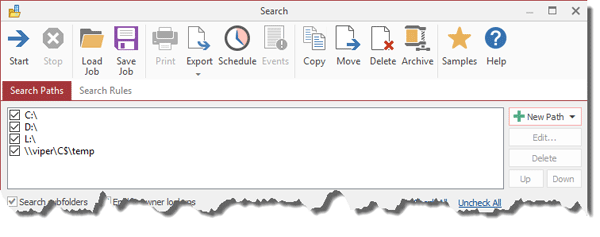
Once you’ve defined the paths that you’d like to search, click the Samples button in the Search window toolbar. Here you’ll be able to choose from a number of built-in search samples that FolderSizes provides out of the box. In this case, select the one named “Find Long File and Folder Paths.xml”.
After the sample is loaded, the Search Rules tab will automatically be selected so you can review the associated rules. In this case, you’ll see two predefined rules – one for files, and one for folders (since we’re interested in finding both). Let’s double-click the file rule to review its criteria:
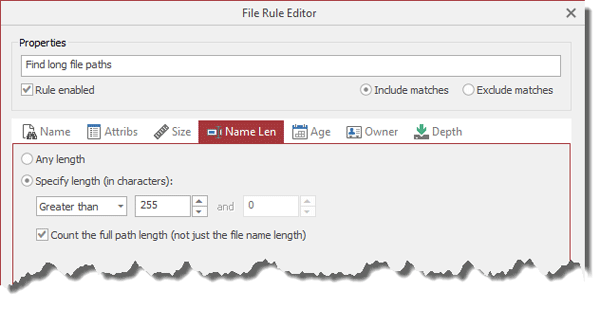
As you can see from the screenshot above, the Name Len tab of the file rule editor specifies is configured to match paths with more than 255 characters in them. Also note that the Count the full path length option is selected (without this, only the length of the file name would be considered when evaluating the rule).
Close the File Rule Editor window and click Start in the Search window to execute the search. Upon completion, you’ll be presented with a full list of files and folders with paths exceeding a length of 255 characters. This allows you to review the size, allocated size (e.g. “size on disk”), and much more (right-click the search result listing column header to customize the report).
So there you have it, a quick and easy-to-use means of finding long NTFS file system paths. Very handy considering that a number of programs and systems are unable to process long file system paths correctly.