
Disk Space Analyzer: A Definition
Last updated: November 2026
A disk space analyzer – also called a disk usage analyzer or storage analyzer – is a program that scans a drive, folder, or network share, totals the size of every folder and file it finds, and presents the results as sorted lists and charts so you can see exactly where your storage is going. It answers the question operating systems answer poorly: what is taking up all this space?
Built-in tools only get you part of the way. Windows File Explorer shows a folder's size one Properties dialog at a time, and Settings > Storage groups usage into broad categories such as "Apps" and "Temporary files" instead of naming the folders responsible. A disk space analyzer measures every folder at once, including hidden and system folders, and ranks them by size, so the handful of folders and files that matter stand out in seconds.
How a Disk Space Analyzer Works
Every disk space analyzer, from a free treemap utility to an enterprise reporting tool, follows the same four steps:
- Scan. Walk the file system and record each file's size, size on disk, dates, attributes, and often its owner.
- Aggregate. Roll file sizes up the folder tree, so each folder's total includes everything beneath it.
- Visualize and rank. Present the totals as a sortable tree, a treemap, a sunburst, bar and pie charts, and lists of the largest, oldest, or duplicate files.
- Act. Delete, move, archive, or compress what you found, or export the results as a report.
Two Ways to Scan: Directory Enumeration vs. Reading the MFT
On Windows, analyzers collect file information in one of two ways, and the choice decides how fast a scan is and what it can reach:
| Directory enumeration | Reading the NTFS Master File Table (MFT) | |
|---|---|---|
| How it works | Asks Windows to list each folder's contents, one folder at a time | Reads the volume's own index of every file in a single pass |
| Speed | Depends on the number of files and the latency of the storage | Very fast; a local drive often scans in seconds |
| Works on | Anything Windows can open: NTFS, ReFS, FAT32, exFAT, mapped drives, and network shares (UNC paths) | Local NTFS volumes only |
| Requirements | Read access to the folders being scanned | Administrator rights for raw volume access |
| Permissions | Honors folder permissions; folders the account can't read are skipped | Sees every file record on the volume |
WizTree and WinDirStat 2.x read the MFT on local NTFS drives, which is why they are known for speed. FolderSizes uses directory enumeration, which is what lets it scan network shares, NAS devices, and non-NTFS volumes the same way it scans a local drive. Over a network, the distinction disappears: the MFT can't be read across a file share, so every analyzer enumerates.
Size vs. Size on Disk
A good analyzer reports two numbers for every file and folder. Size is the amount of data; size on disk is the storage actually allocated to hold it. They differ because storage is allocated in whole clusters, and because NTFS compression, sparse files, and cloud placeholders change the picture: a OneDrive file that is "online-only" reports its full size but occupies almost nothing locally. When you're trying to free space, size on disk is the number that matters. Our size vs. size on disk explainer covers the details.
Treemaps, Sunbursts, and Lists: Reading the Results
A treemap draws every folder as a rectangle whose area is proportional to its size, nested inside its parent folder, so the largest files and folders are the largest blocks on screen. Treemaps were invented around 1990 by Ben Shneiderman at the University of Maryland for exactly this purpose: finding out what was filling a hard disk.
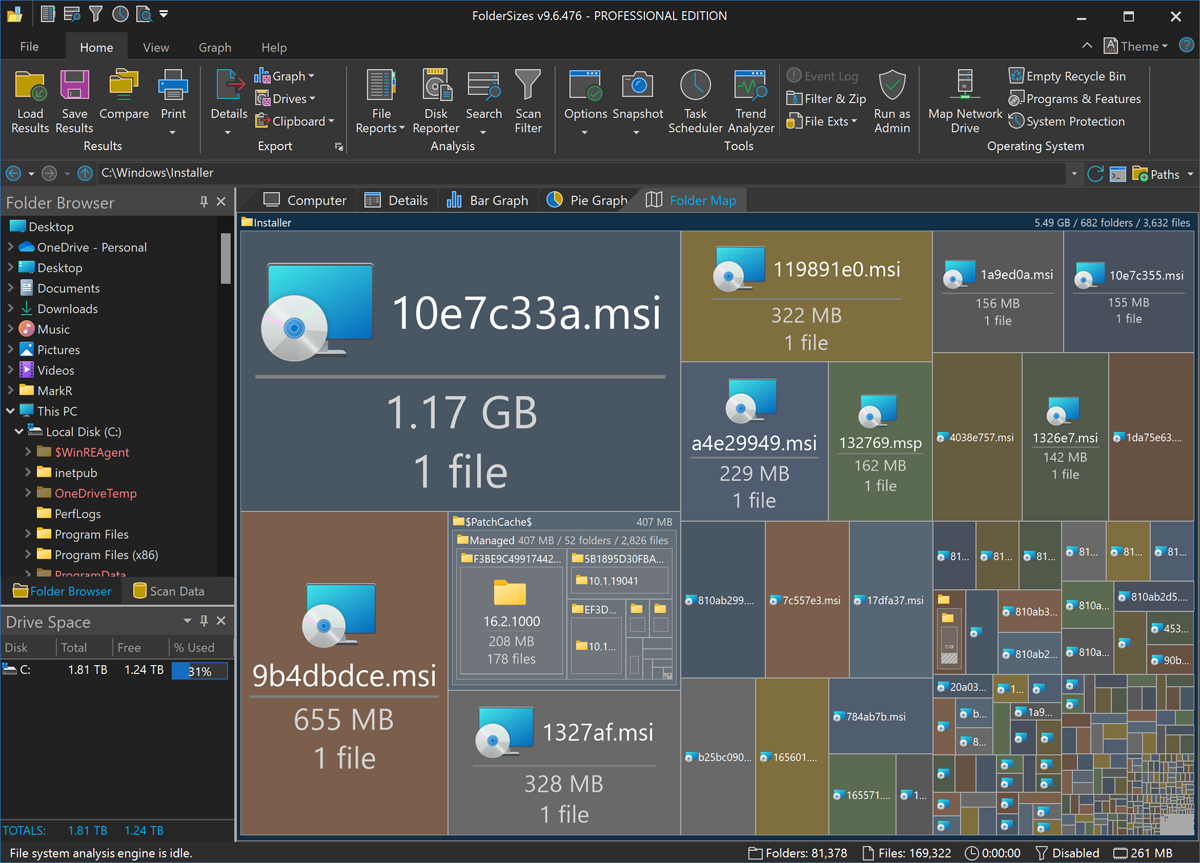
A sunburst chart shows the same tree as concentric rings: the center is the folder you scanned and each ring is one level deeper, with each segment sized by the space it uses. It is better than a treemap for seeing how deep the space goes, for example a large folder buried five levels down. A sorted tree or list is the most precise view, the one to use when you need exact numbers or want to export them, while bar and pie charts are best for comparing a handful of sibling folders.
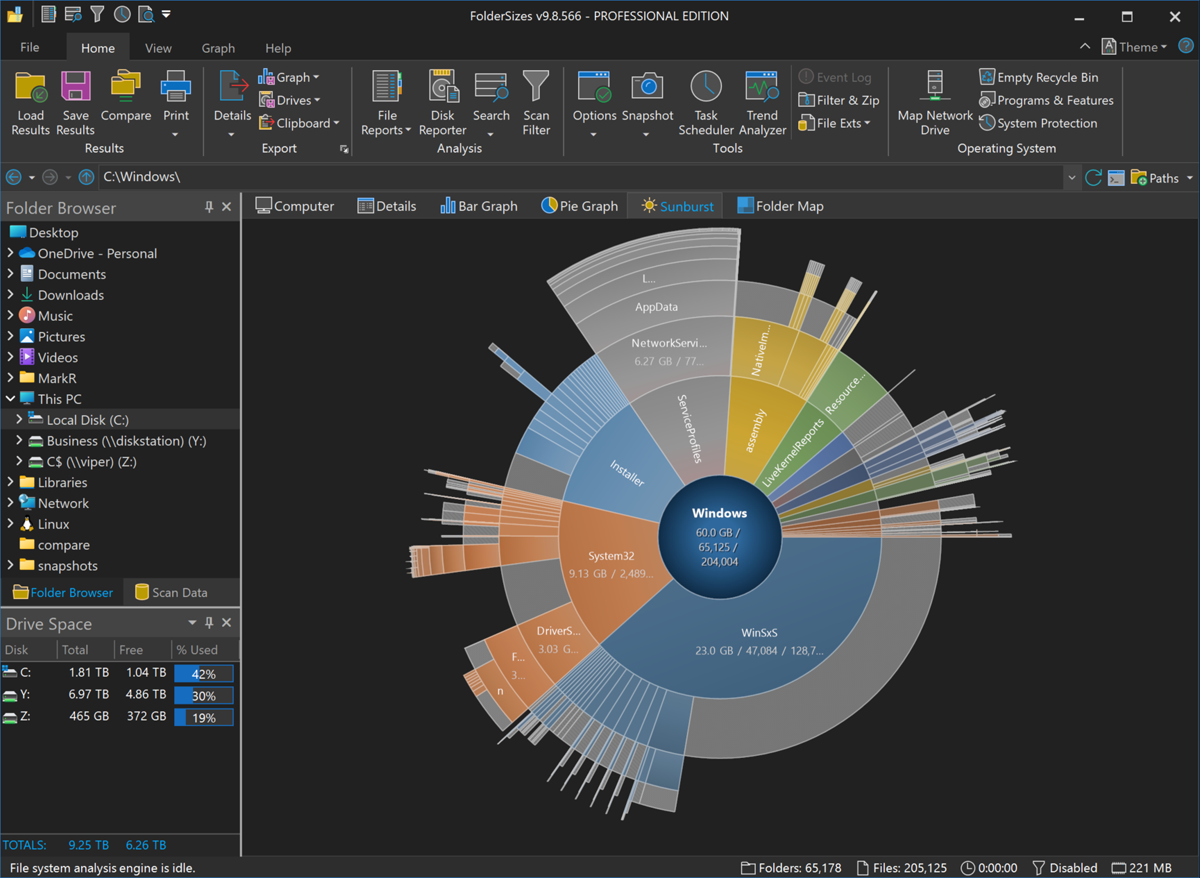
FolderSizes includes all four chart types alongside its folder tree: see the treemap and sunburst views.
What a Disk Space Analyzer Typically Finds on Windows
- Forgotten large files – videos, ISO images, virtual machine disks (.vhdx, .vmdk), old installers and backups, and crash dumps. See how to find large files.
- Temporary files and caches –
%TEMP%,C:\Windows\Temp, browser caches, and Windows Update downloads inC:\Windows\SoftwareDistribution\Download. FolderSizes has a dedicated temporary files report. - Duplicate files – the same photos, downloads, and documents copied to several places. See the duplicate files report.
- Old and unused files – data nobody has opened in years, the best candidates for archiving. See finding unused files.
- System files –
pagefile.sysandhiberfil.sys, whose sizes scale with installed memory, and the hidden System Volume Information folder, which holds restore points and shadow copies (vssadmin list shadowstorageshows how much space they use). - The WinSxS folder – Windows' component store. Explorer overstates its size because many of its files are hard links to files elsewhere in Windows;
Dism.exe /Online /Cleanup-Image /AnalyzeComponentStorereports the real figure, and Disk Cleanup is the safe way to shrink it.
Built-in Alternatives, by Operating System
Every major operating system has some built-in way to see disk usage. These tools are fine for a quick check, but none ranks every folder on a drive the way a dedicated analyzer does.
Windows
- File Explorer – right-click a folder and choose Properties to see its size, one folder at a time. (Why Explorer doesn't show folder sizes in its columns is a long-standing design choice: totals require scanning every subfolder.)
- Settings > System > Storage – usage grouped by category, with "Show more categories" for detail. Storage Sense can clear temporary files and the Recycle Bin automatically.
- Disk Cleanup – removes temporary and Windows Update files; choose "Clean up system files" for more. Our guide to recovering disk space walks through it.
- PowerShell – totals a single folder (in GB):
(Get-ChildItem 'C:\Users' -Recurse -File -Force -ErrorAction SilentlyContinue | Measure-Object -Property Length -Sum).Sum / 1GB
macOS
System Settings > General > Storage (macOS Ventura and later) shows usage by category with
cleanup recommendations. Popular third-party analyzers include DaisyDisk, GrandPerspective, and
OmniDiskSweeper, and du -sh * in Terminal totals the folders in the current directory.
Linux
df -h shows free space per file system and du -sh * totals folders. For an
interactive view, ncdu runs in the terminal, and the GNOME Disk Usage Analyzer (Baobab)
and KDE Filelight provide graphical treemap- and sunburst-style views.
FolderSizes is a Windows application, so the rest of this guide focuses on Windows.
How to Choose a Disk Space Analyzer for Windows
- Where your data lives. For a single local NTFS drive, an MFT-based scanner is fastest. For file servers, NAS devices, and network shares, look for solid UNC path support, share discovery, and support for Windows Server.
- One-off cleanup or ongoing management. A free visualizer is enough to find what filled your C: drive today. Managing storage over months calls for scheduled scans, snapshots, and trend history.
- Reporting depth. A treemap shows where space is; file reports show what it is: largest, oldest, duplicate, and temporary files, and usage by type, owner, and age.
- Search and filtering. Finding every video over 1 GB untouched for two years should take one query, not an afternoon.
- Export and sharing. CSV is fine for your own use. Reports for managers, clients, or auditors need Excel, PDF, or HTML.
- Automation. A command-line interface and built-in scheduling with email delivery turn a manual check into a recurring report.
- Licensing. Check whether the free edition may be used at work (some are personal-use only), and whether paid editions are subscriptions or perpetual licenses.
Popular Disk Space Analyzers for Windows
- WinDirStat – free, open source, and the classic treemap. FolderSizes vs WinDirStat
- WizTree – the fastest local NTFS scans via the MFT; free for personal use. FolderSizes vs WizTree
- TreeSize – a mature tool whose paid editions also scan SharePoint, Amazon S3, and Azure; sold as subscriptions. FolderSizes vs TreeSize
- Folder Size (MindGems) – a lightweight, Explorer-style folder size browser with bar and pie charts.
- FolderSizes – built for reporting, automation, network shares, and tracking storage over time; free edition plus perpetual licenses.
The full side-by-side comparison, with licensing, export formats, and network support, is in our Best Windows Disk Space Analyzers roundup.
Where FolderSizes Fits
FolderSizes is a network-enabled disk space analyzer for Windows and Windows Server, made by Key Metric Software since 2003. The free edition, with no time limit, pairs a folder tree with treemap, sunburst, bar, and pie charts; file reports covering the largest, oldest, duplicate, and temporary files; and multi-criteria search. The Pro edition adds exports to Excel, PDF, HTML, CSV, and XML, scheduled scans with email delivery, file system snapshots, a storage trend analyzer, and a command-line interface.
Related reading: finding large folders, 13 ways to recover disk space, and size vs. size on disk.